Using the Lapdock#
Once ready to use the Lapdock, press the power button to wake up the docking device. You will be able to edit the Lapdock settings by swiping with two fingers where indicated.
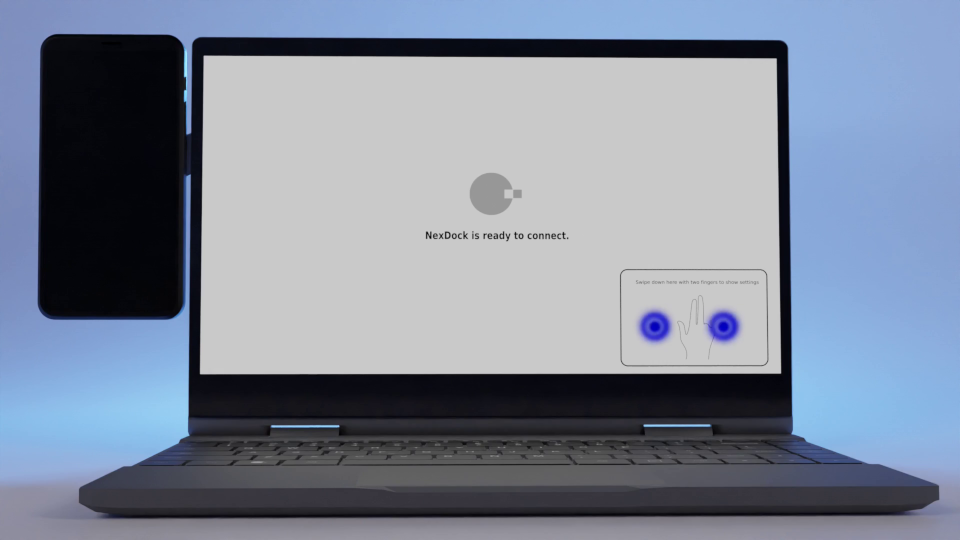
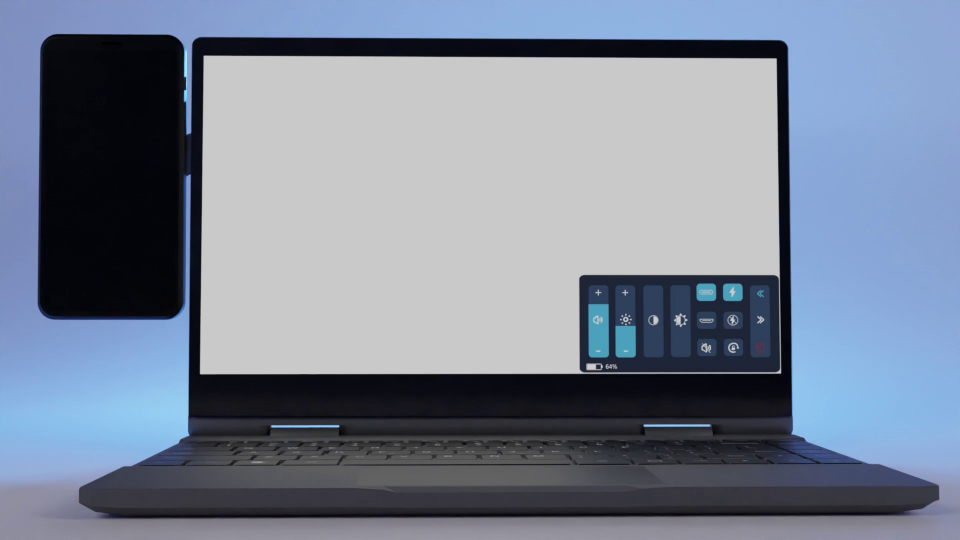
Here, you can adjust volume and brightness and check the Lapdock power level.
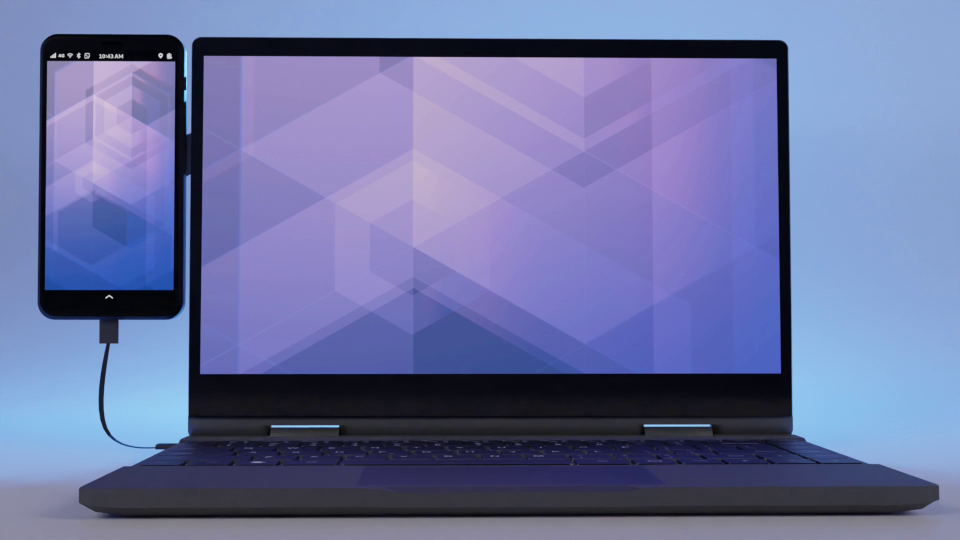
With the dock powered on, plug in your phone and attach it to the mounting bracket.
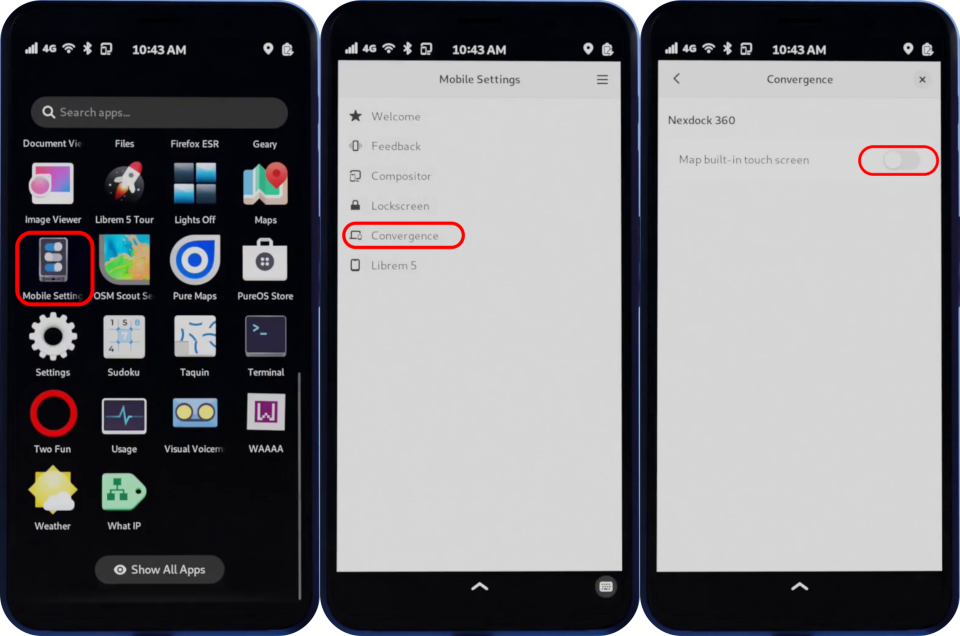
To use both the onboard touch screen and Lapdock touch screen, launch the Mobile Settings application, tap Convergence, and enable Map built-in touch screen.
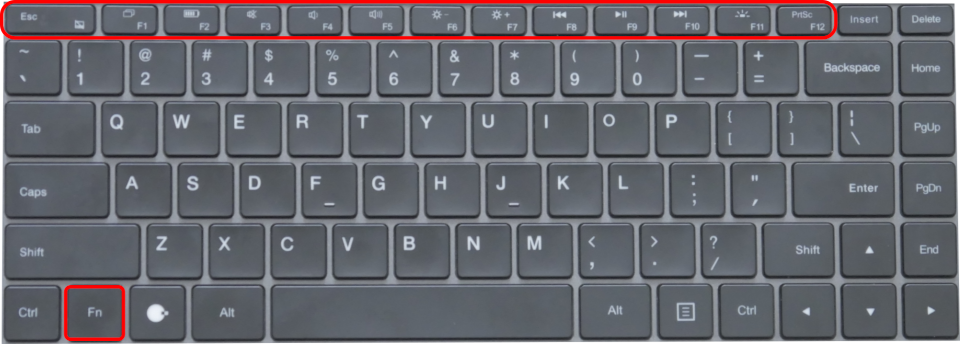
Additional keyboard buttons are enabled along the top row of the keyboard while holding the function Fn key. Here, you can disable or enable the mouse pad, quickly check the Lapdock battery, adjust the onboard speakers, brightness, and keyboard backlight. You can also control media playback and take a screenshot.
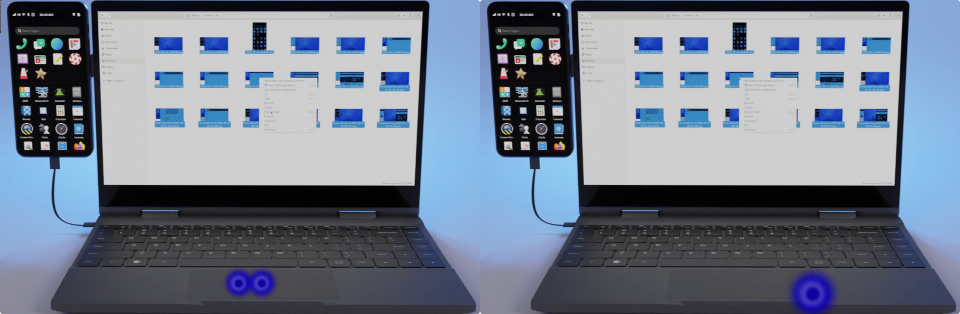
With the Lapdock attached, adaptive applications will expand to utilize the screen. For example, the file browser works on a small screen, but advanced file management becomes a breeze with a mouse and keyboard. To right-click, press the right side of the keypad or tap with two fingers.
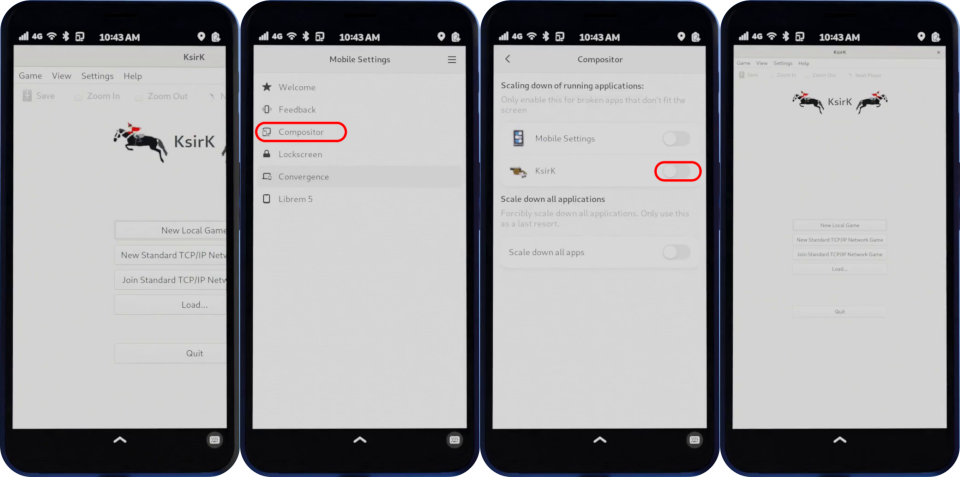
Non-adaptive applications can be a challenge to use on the go. The Mobile Settings applications can force apps to resize.
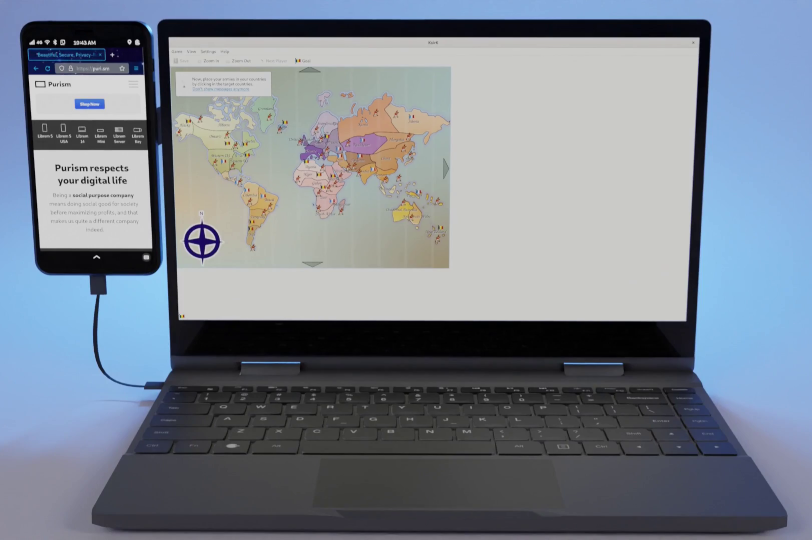
But using a Lapdock makes apps built for a desktop feel at home.
Quickly move an actively selected window to the left half of the screen by pressing Super+🠜, or to the right half of the screen by pressing Super+🠞.
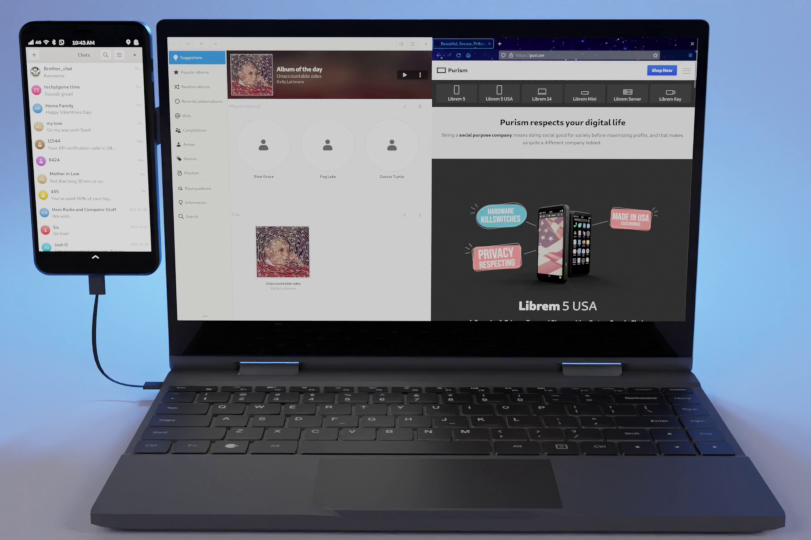
To expand a window for full-screen viewing, press Super+🠝.
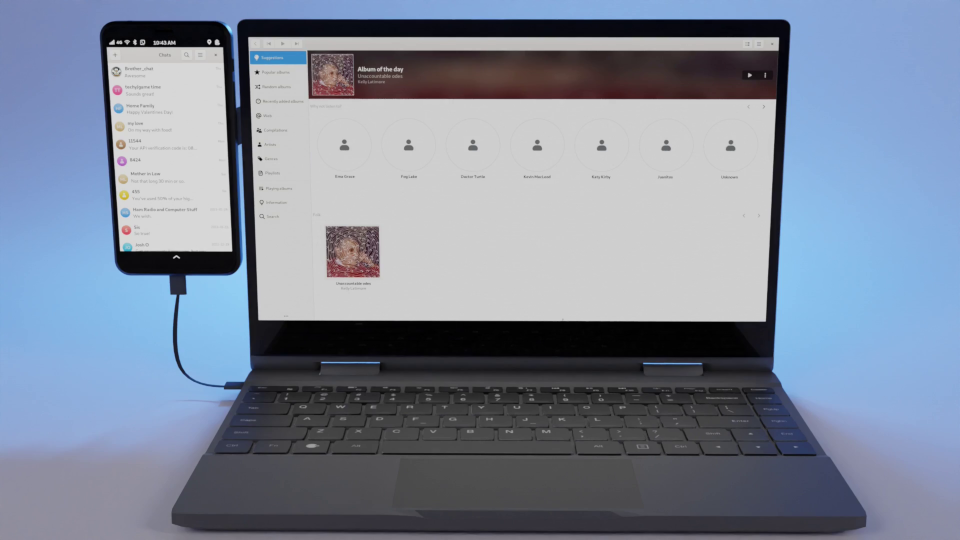
Move a running application to the screen to the left by pressing Shift+Super+🠜. Move a running application to the screen to the right by pressing Shift+Super+🠞.
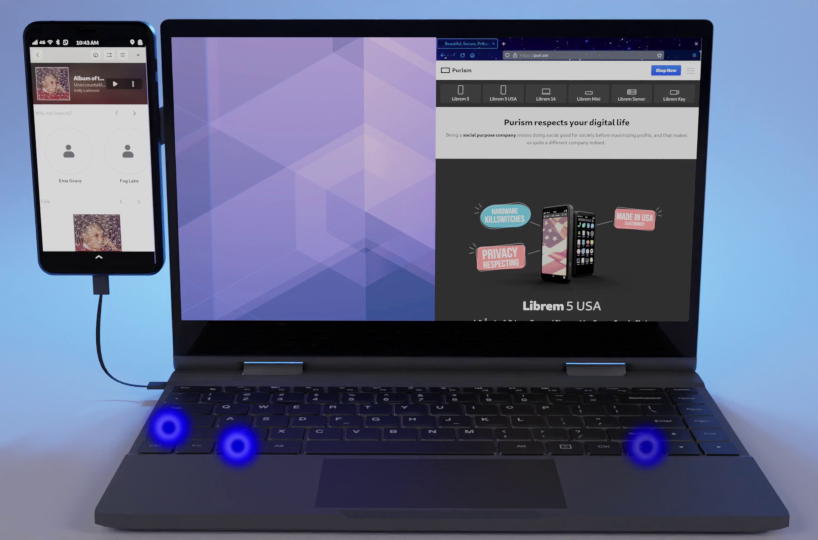
Get the most out of your mobile computer phone, by turning it into a laptop when you need to.