Install an OS with PureBoot configured#
Note
This guide assumes that you have set up the GPG keys with PureBoot.
Installing an OS with PureBoot configured with GPG keys may emit warnings about modified boot files or missing TOTP or HOTP counters. This guide will instruct you on how to address these warnings.
Compatibility#
PureBoot requires an unencrypted /boot partition.
Installing OS#
From the PureBoot main menu, select
Options.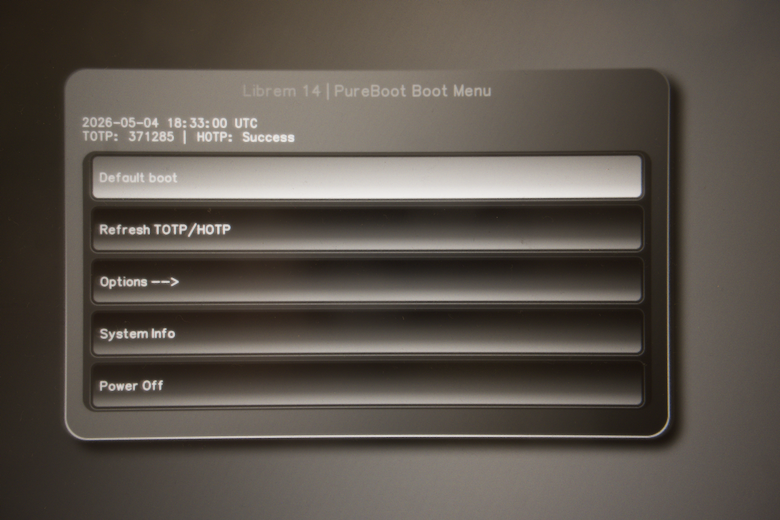
Select
Boot Options.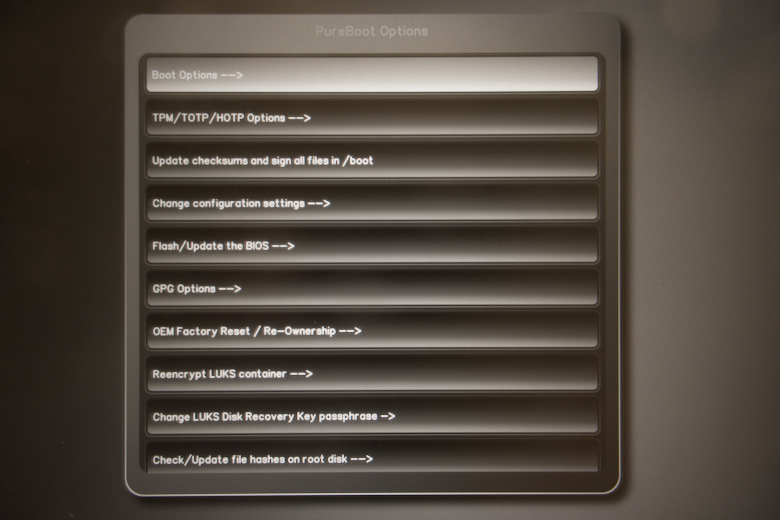
Select
USB boot.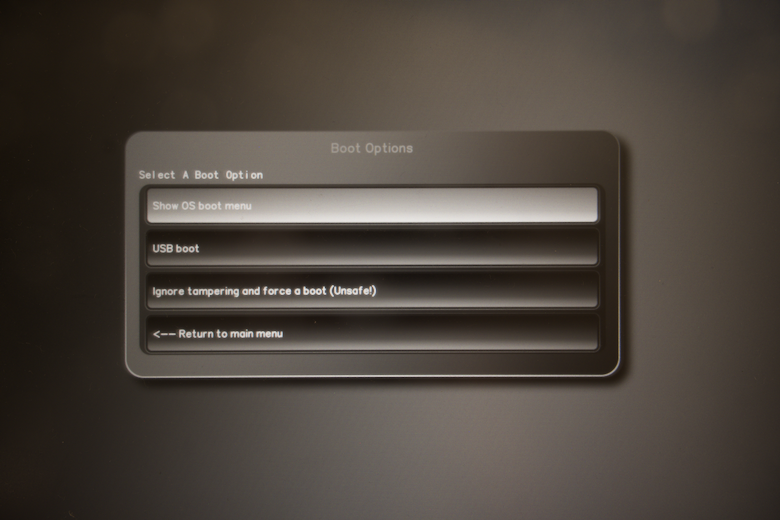
Select the USB device with the OS installation media.
Proceed to install the OS.
Post OS Installation#
Take ownership of the TPM#
PureBoot keeps TPM and HOTP rollback counters under the /boot partition.
Since the OS is just installed, these do not exist and they need to be created.
Ensure your USB security token (Librem Key) is plugged in.
From the PureBoot main menu, select
Options.
Select
TPM/TOTP/HOTP Options.
Select
Reset the TPM. A confirmation prompt will appear and select “Yes”.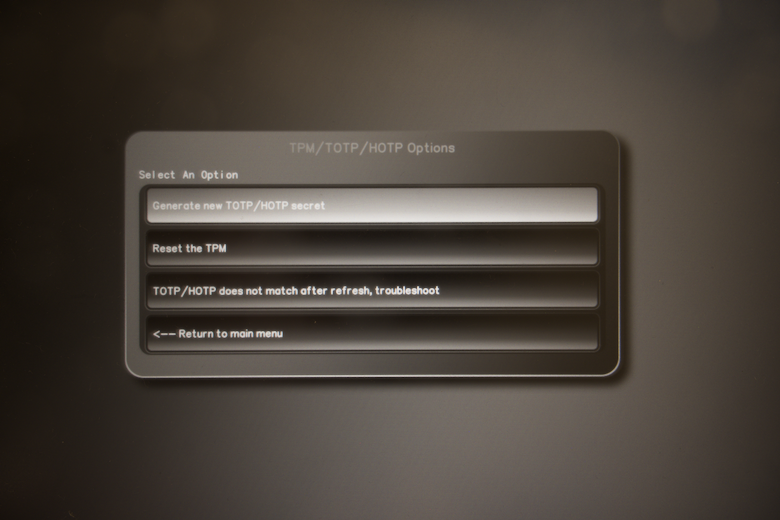
PureBoot will temporarily drop to the console. You will be prompted to enter your USB security token admin PIN.
The TPM and HOTP counter are now configured.
Signing /boot content#
Now that the firmware state is saved to the TPM and proven through the TOTP/HOTP, it is time to sign the /boot content.
Ensure your USB security token (Librem Key) is plugged in.
From the PureBoot main menu, select
Options.
Select
Update checksums and sign all files in /boot.
Setting a new boot default#
From the PureBoot main menu, select
Options.
Select
Boot Options.
Show OS boot menu.
Select a new boot option. A confirmation prompt will appear and you can choose to make it the default boot option.
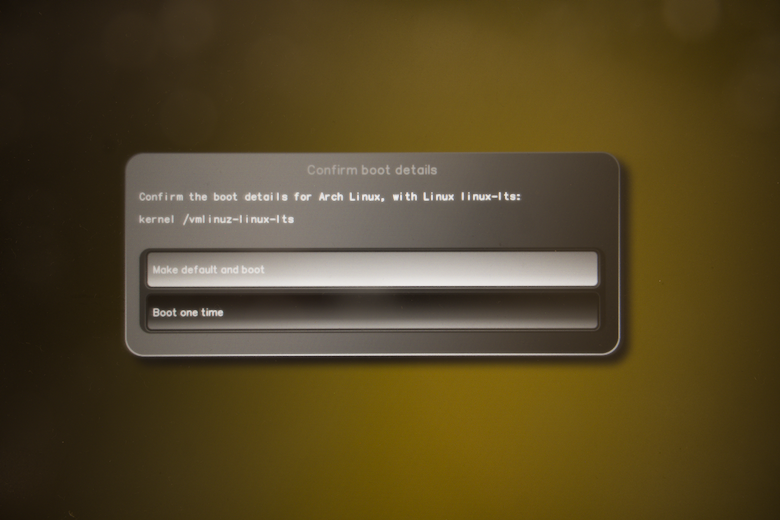
If you choose to select a new boot option, PureBoot will ask you to re-sign the
/bootcontent by asking for your USB security token user PIN.