Lapdock Kit#

Overview#

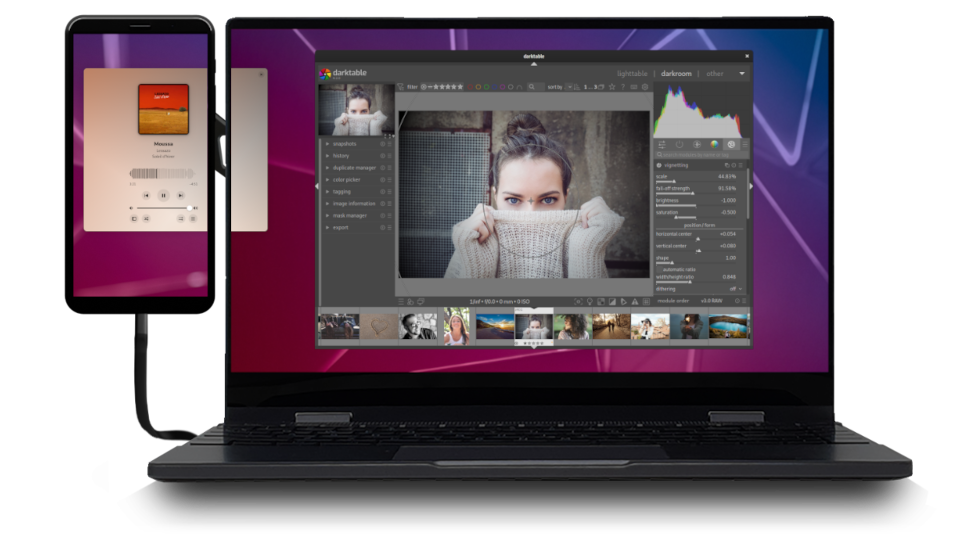
The Lapdock kit, enables the use of a phone such as a Librem 5 or Liberty Phone into a PureOS laptop. While your Librem 5 is fully able to run desktop apps on its own, USB-C connectivity with the Lapdock offers significantly increased screen space, spare battery capacity, and additional input and output ports.

Download

The Lapdock offers a USB-C with an adapter to a full-sized USB, allowing you to attach just about any USB device to your phone.

Librem 5 + lapdock running CubicSDR with a HackRF

Librem 5 + lapdock running CubicSDR with a HackRF#

You also get an extra Micro USB slot and a headphone jack.

Lapdock input and output ports

The Lapdock includes a large internal battery, keeping your phone topped off while connected.

Initial setup#

Once you receive your Lapdock kit, you’ll need to attach the mount to your phone and Lapdock.

First, stick the circular coin-shaped part to the back of your phone.

Lapdock setup: phone alignment

Next, line up your mount over your Lapdock and phone.

Lapdock setup: bracket alignment

Mounting the bracket higher on the frame will allow a phone to flip into tablet mode, but it will be less balanced while being used as a laptop. Therefore, a higher installation point is better if you plan to use tablet mode most often; A lower mounting point offers good balance and still works well as a tablet if you plan to primarily use laptop mode.

Lapdock setup: bracket alignment options

Using the Lapdock#

Once ready to use the Lapdock, press the power button to wake up the docking device. You will be able to edit the Lapdock settings by swiping with two fingers where indicated.

Using two-finger swipe to display the Lapdock settings menu

Here, you can adjust volume and brightness and check the Lapdock power level.

Lapdock settings menu

With the dock powered on, plug in your phone and attach it to your mount.

Lapdock connected to a PureOS-powered phone

To use both the onboard touch screen and Lapdock touch screen, open Mobile Settings, select convergence, and enable Map built-in touch screen.

Enabling the built-in touchscreen feature from the PureOS-powered phone

While holding the function key <kbd>Fn</kbd>, you can disable or enable the mouse pad, quickly check the Lapdock battery, and adjust the onboard speakers, brightness, and keyboard backlight. You can also control media playback and take a screenshot.

Lapdock function (Fn) keys

With the Lapdock attached, adaptable apps will expand to utilize the screen. For example, the file browser works on a small screen, but advanced file management becomes a breeze with a mouse and keyboard. To right-click, simply press the right side of the keypad or tap with two fingers.

Right-click using the Lapdock touchpad

Unadapted apps can be a challenge to run on the go. You can use mobile settings to force apps to resize.

Compositor application scaling in PureOS

But using a Lapdock makes apps built for a desktop feel at home.

Web browsing while using the Lapdock with a PureOS-connected phone

Multi-taskers can run lots of apps on the Librem 5, but with a Lapdock, you can organize them side by side by pressing Super + left or right.

Multitasking with the Lapdock Kit

To make a window full-screen Press Super + Up.

Setting an application to full screen using the Lapdock Kit

And to swap which screen an app runs on, press shift-Super-left/right.

Setting an application to show on different displays using the Lapdock Kit

Get the most out of your mobile computer phone, by turning it into a laptop when you need to.