Admin Server#
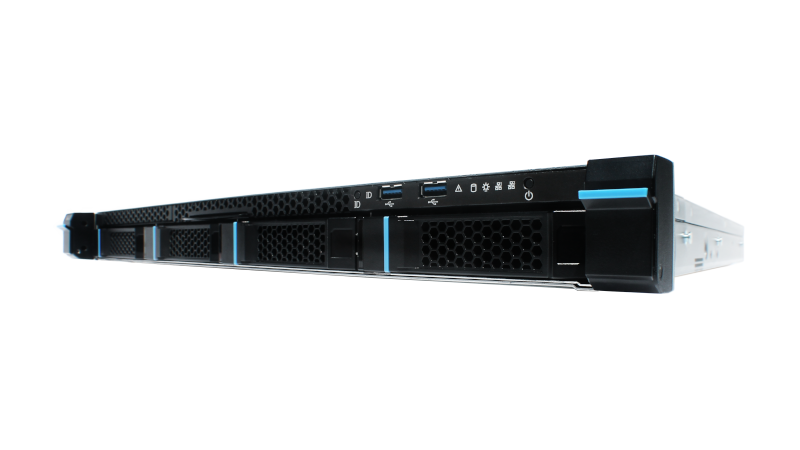
|
|
Post Quantum Cryptography (PQC)#
Purism implemented the latest NIST approved PQC throughout the ecosystem. Purism’s unique implementation generates keys on the end devices and the secret never leaves that device. A public certificate is propagated through the ecosystem offering the latest and greatest in secure communication between parties via end-to-end-encrypted quantum-safe cryptography.
Administration Interface#
To set up a new user and device, an administrator creates a user, then authorizes the device by generating a secret key and public certificate. After setup, a user can then use the device for quantum-safe communications with other users.
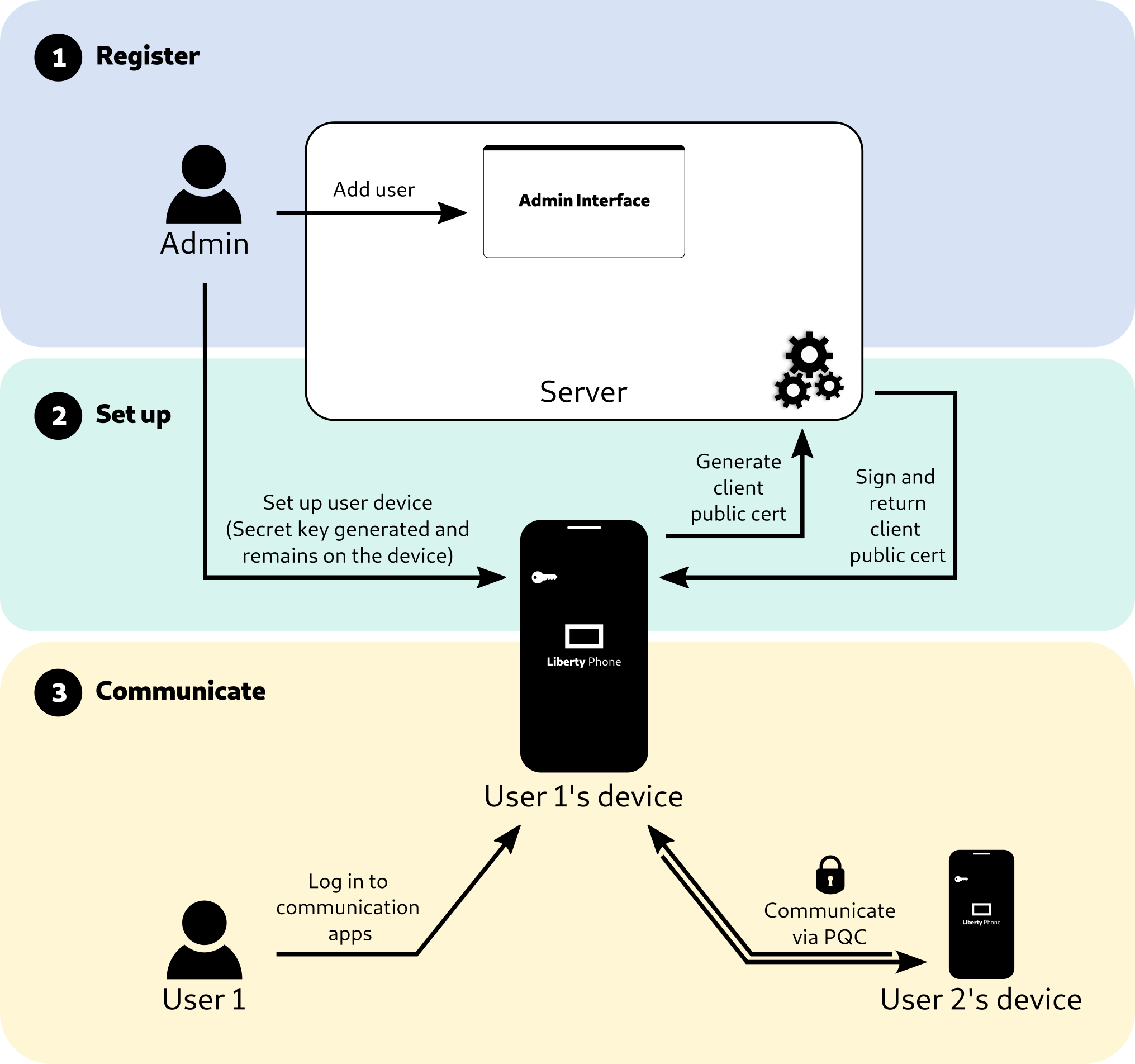
The administration interface can be accessed through a web browser. The administrator can administer users and public certificates through this interface.
Register a new user#
An administrator registers a new user to enable use of communications services. The administrator can also grant administrator rights, so that a user can register further users.
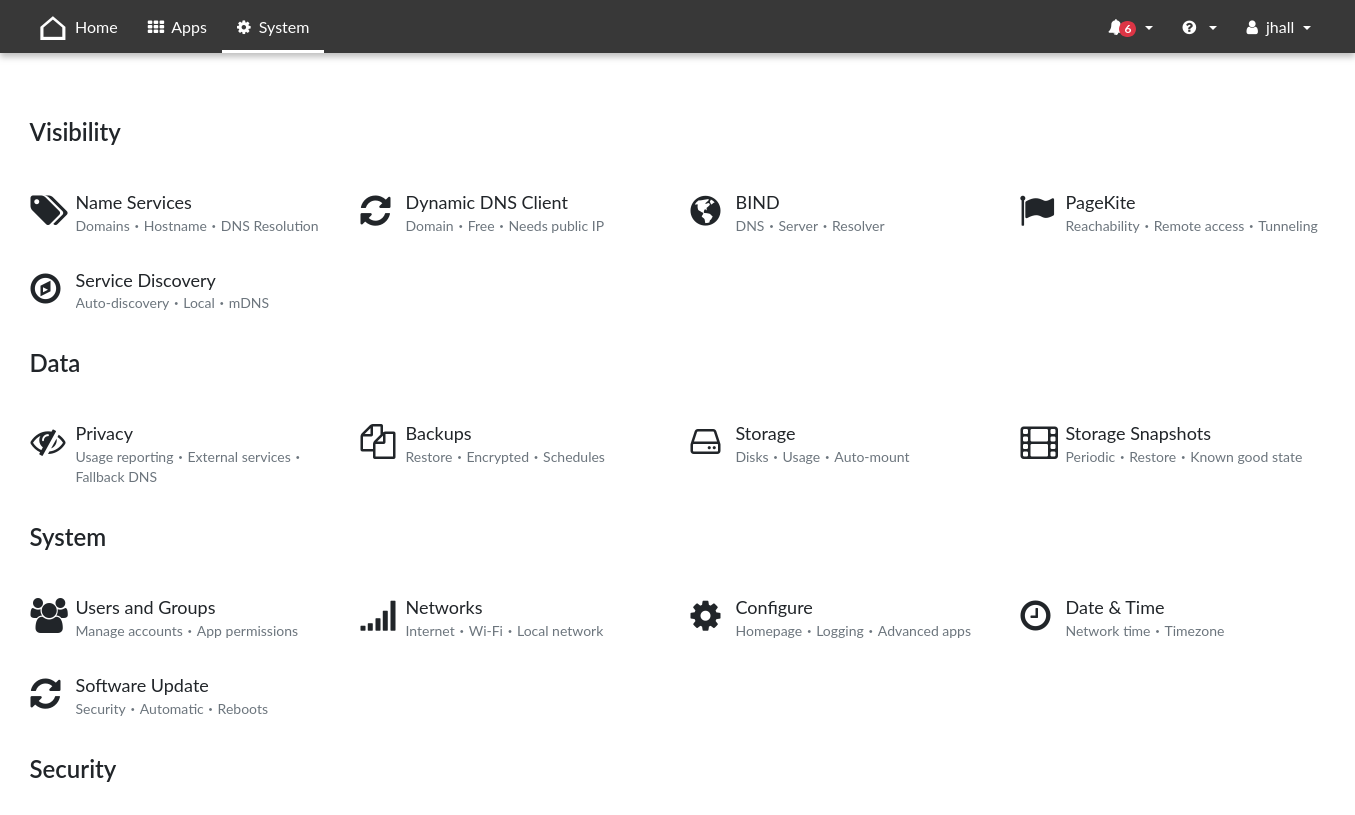
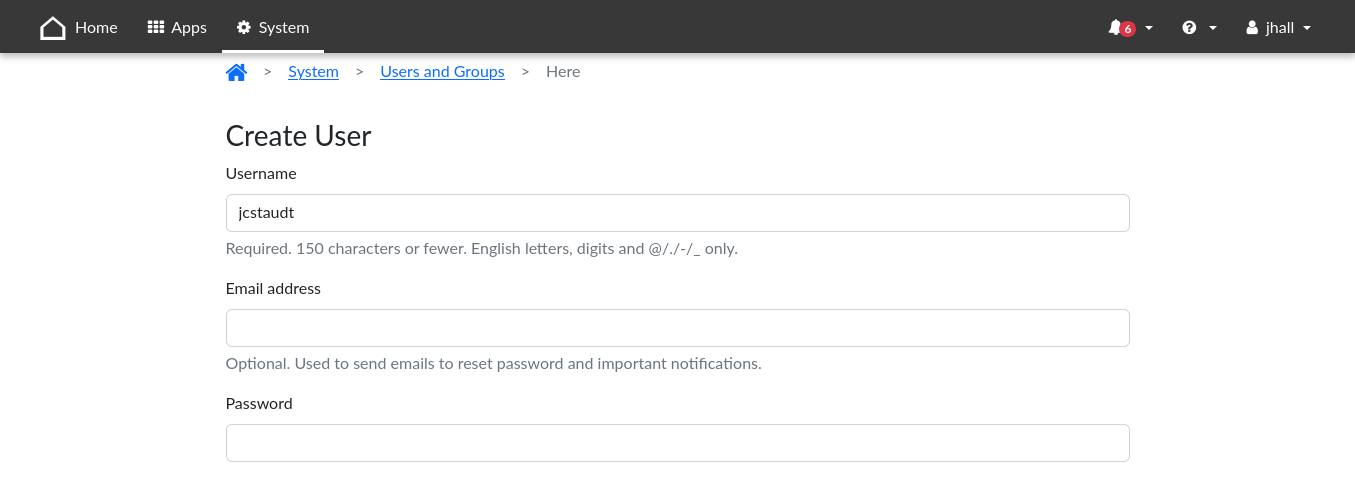
First, access the web interface, then select System > Users and Groups:
Select Create User:
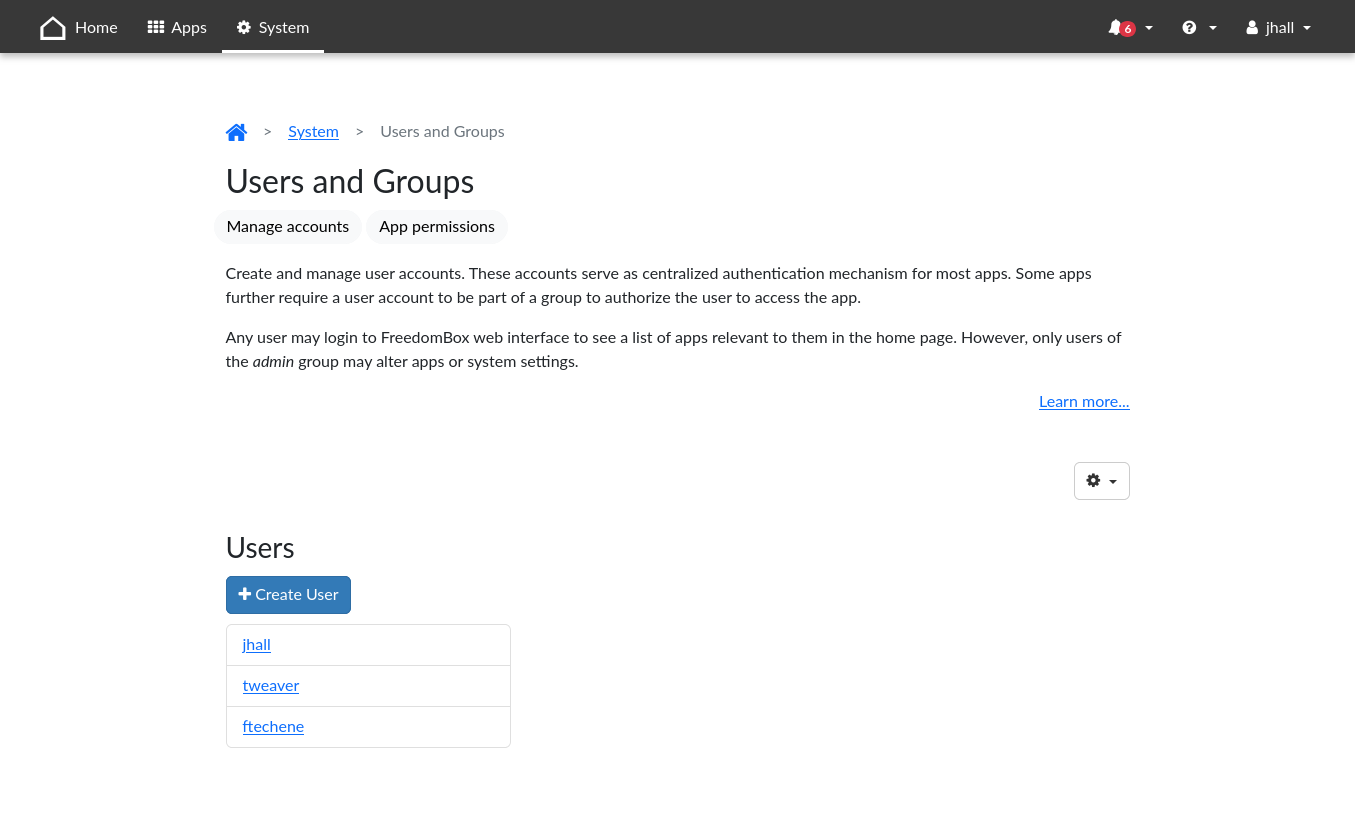
Choose a user name and password for the new user. You can also check Access to all services and settings (admin) to allow that user to create additional users and administer the server.
Configure a communication device#
An administrator sets up a communications device to grant it access to communications services.
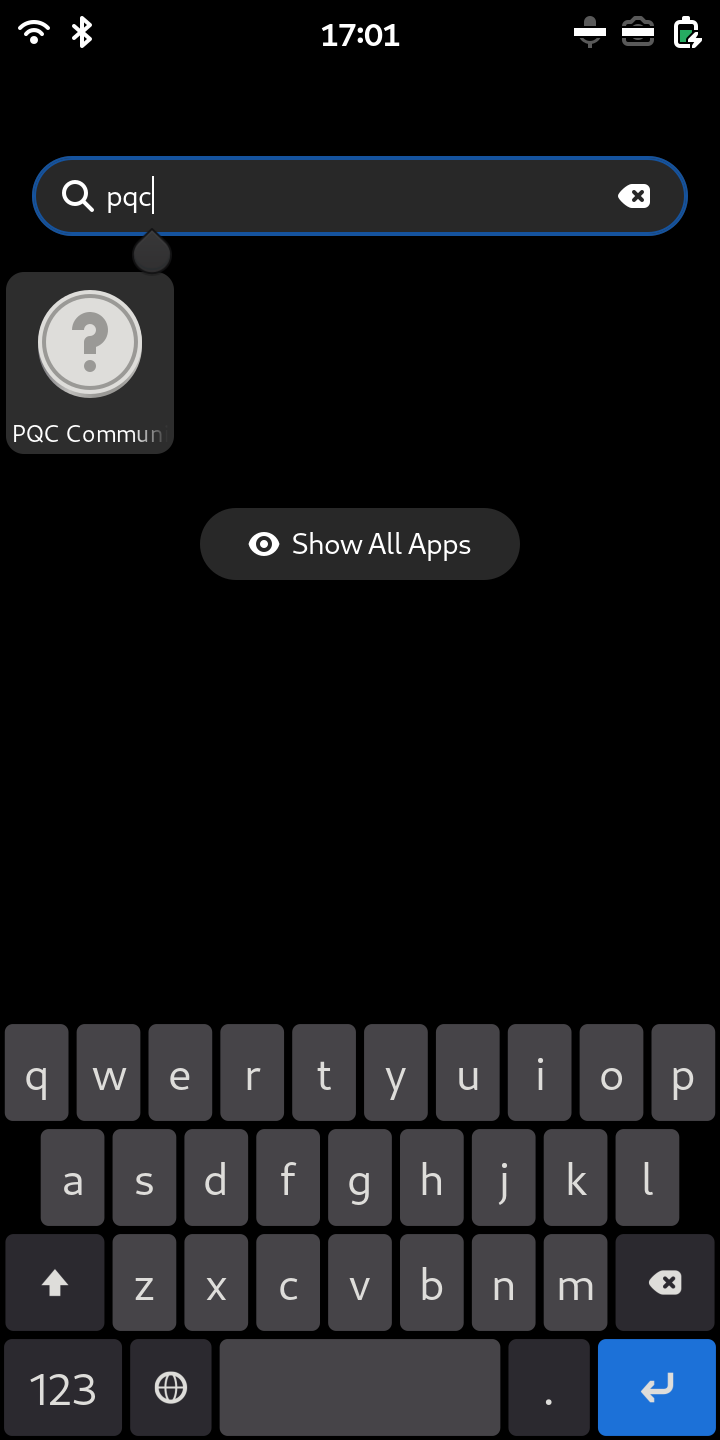
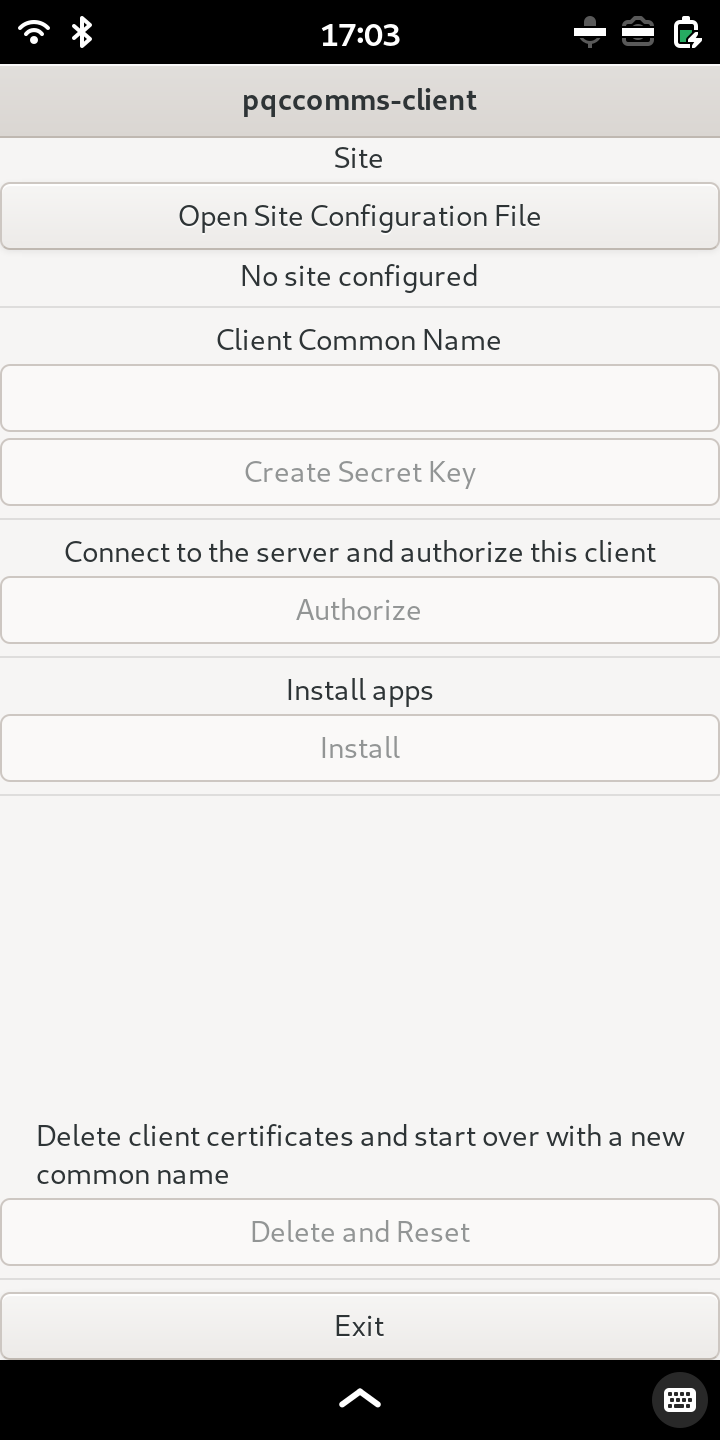
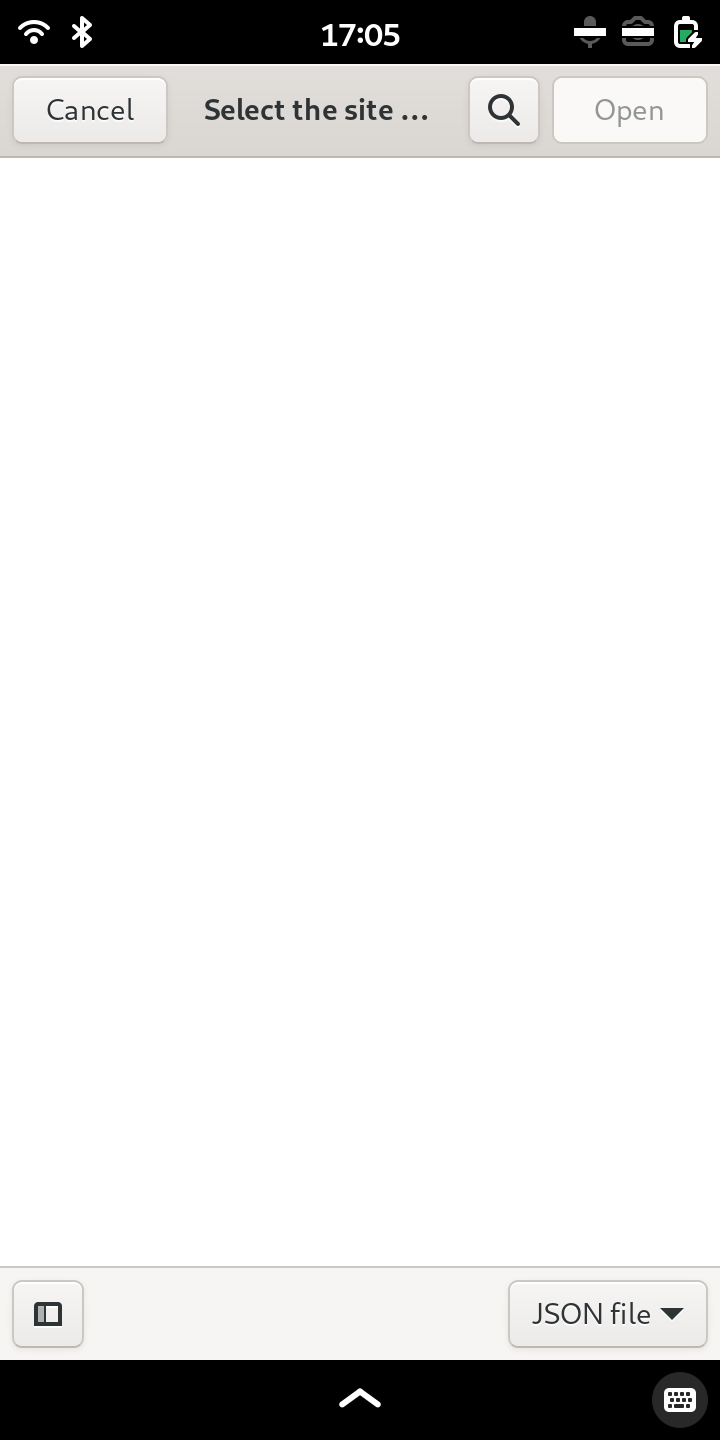
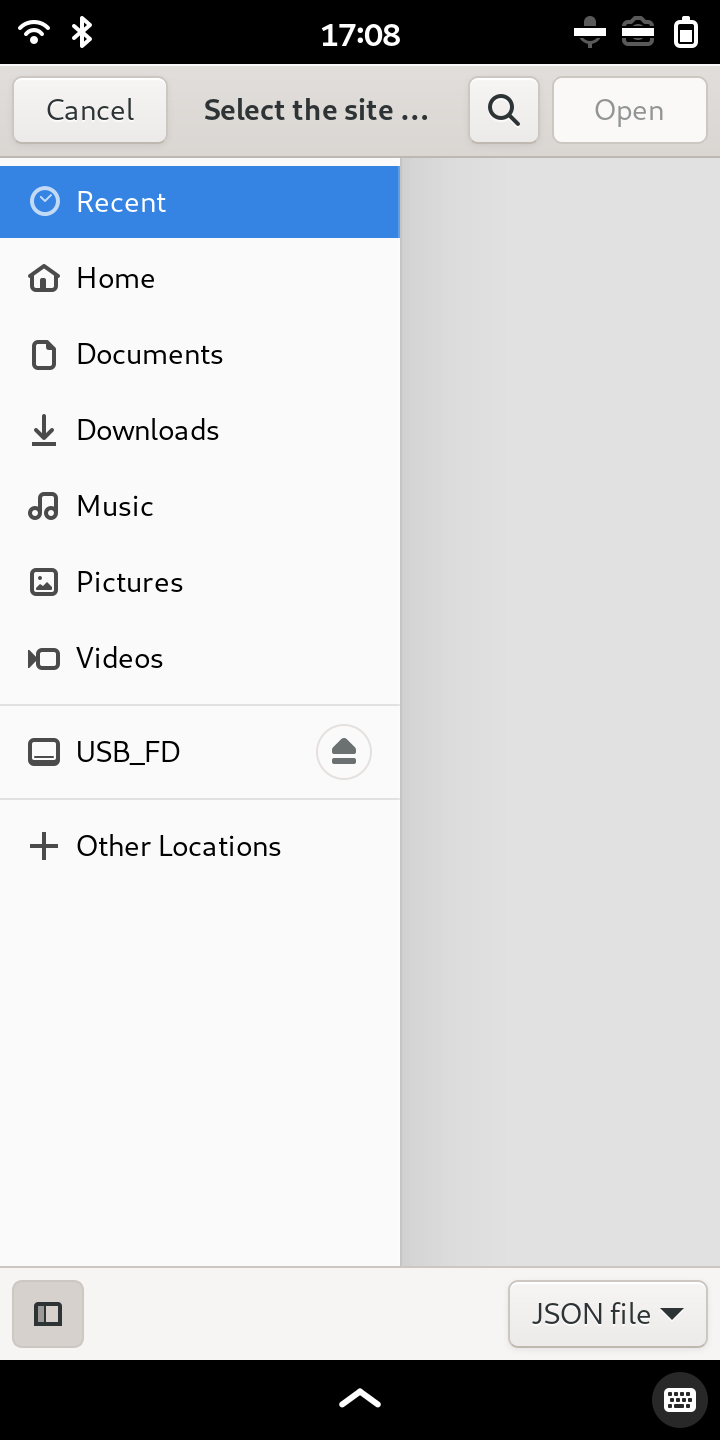
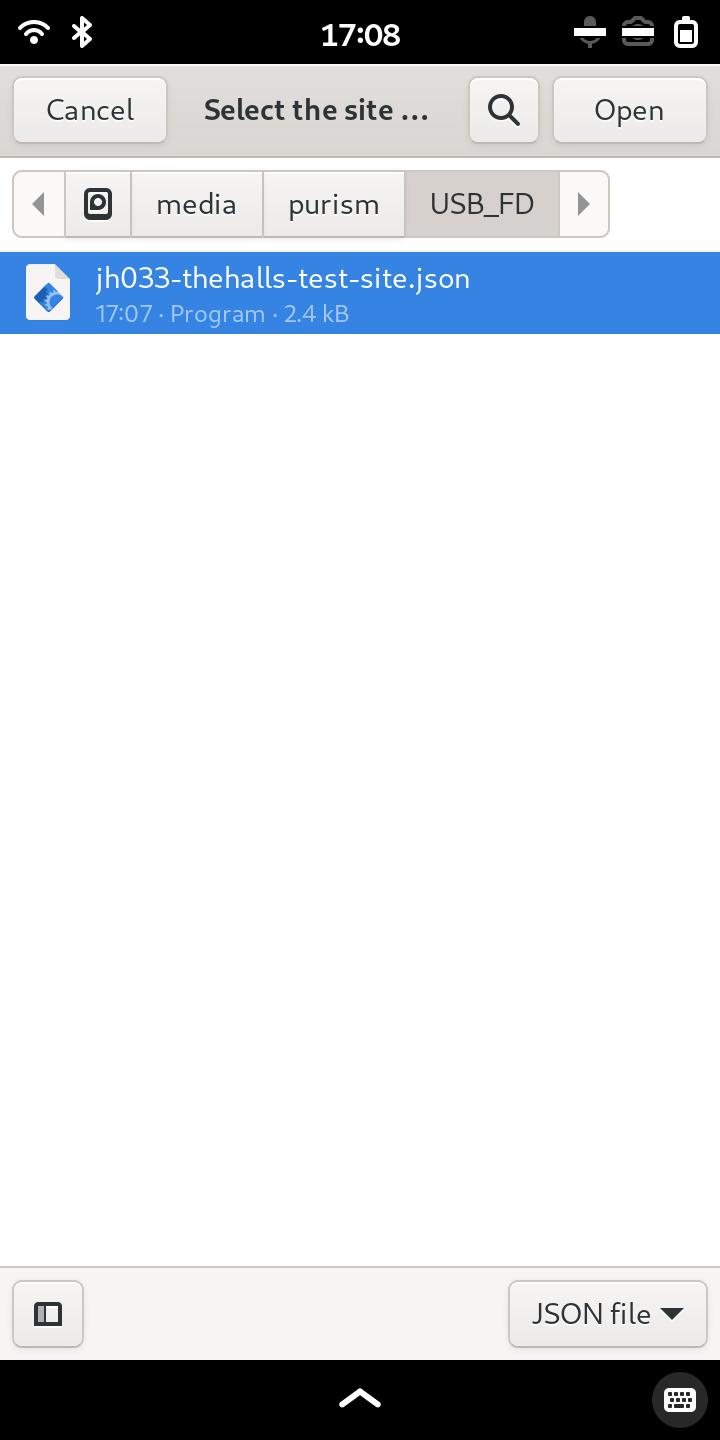
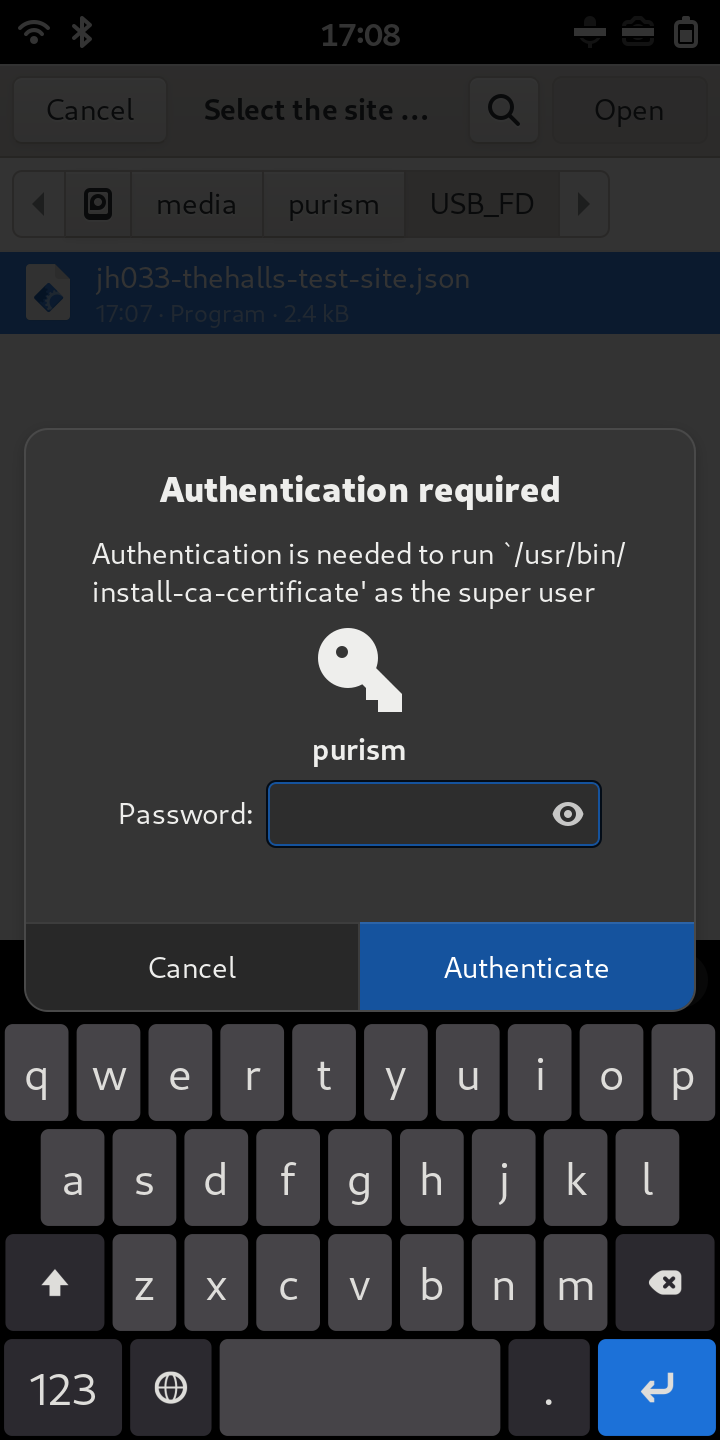
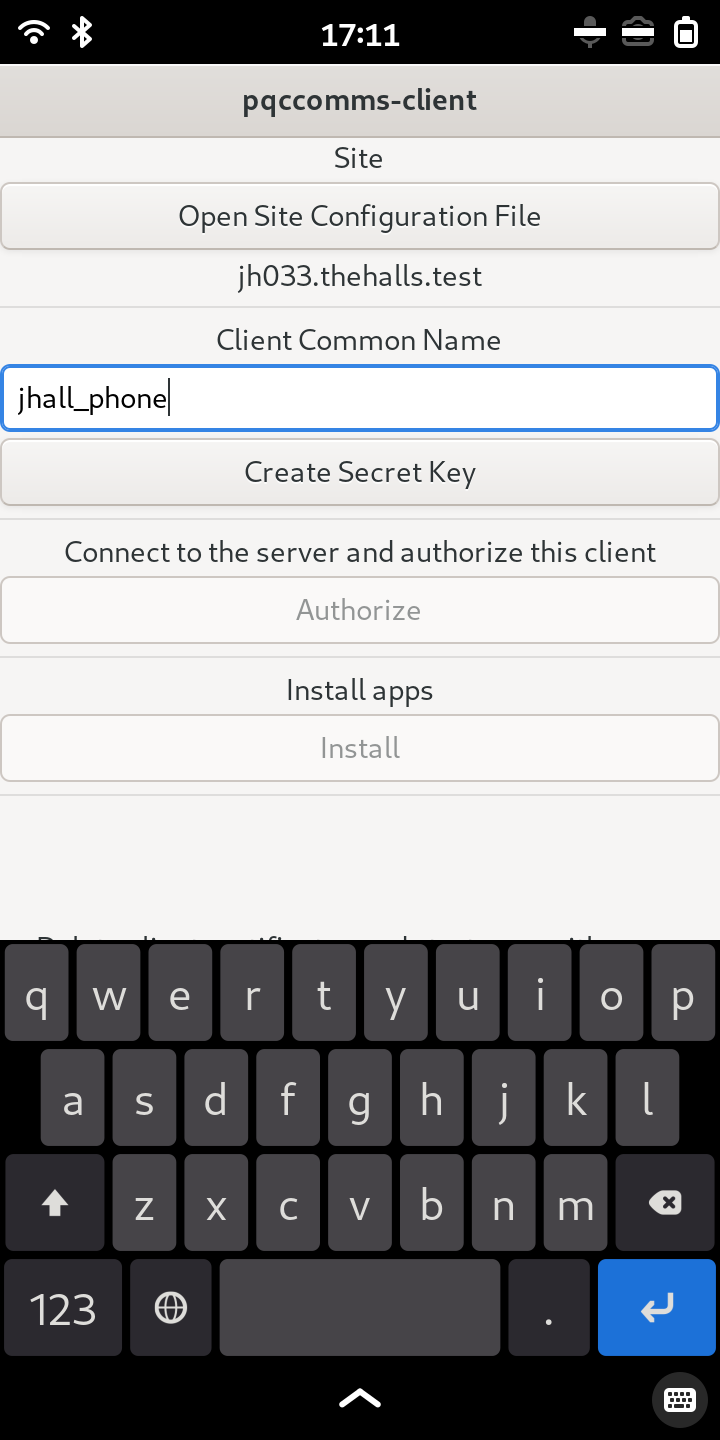
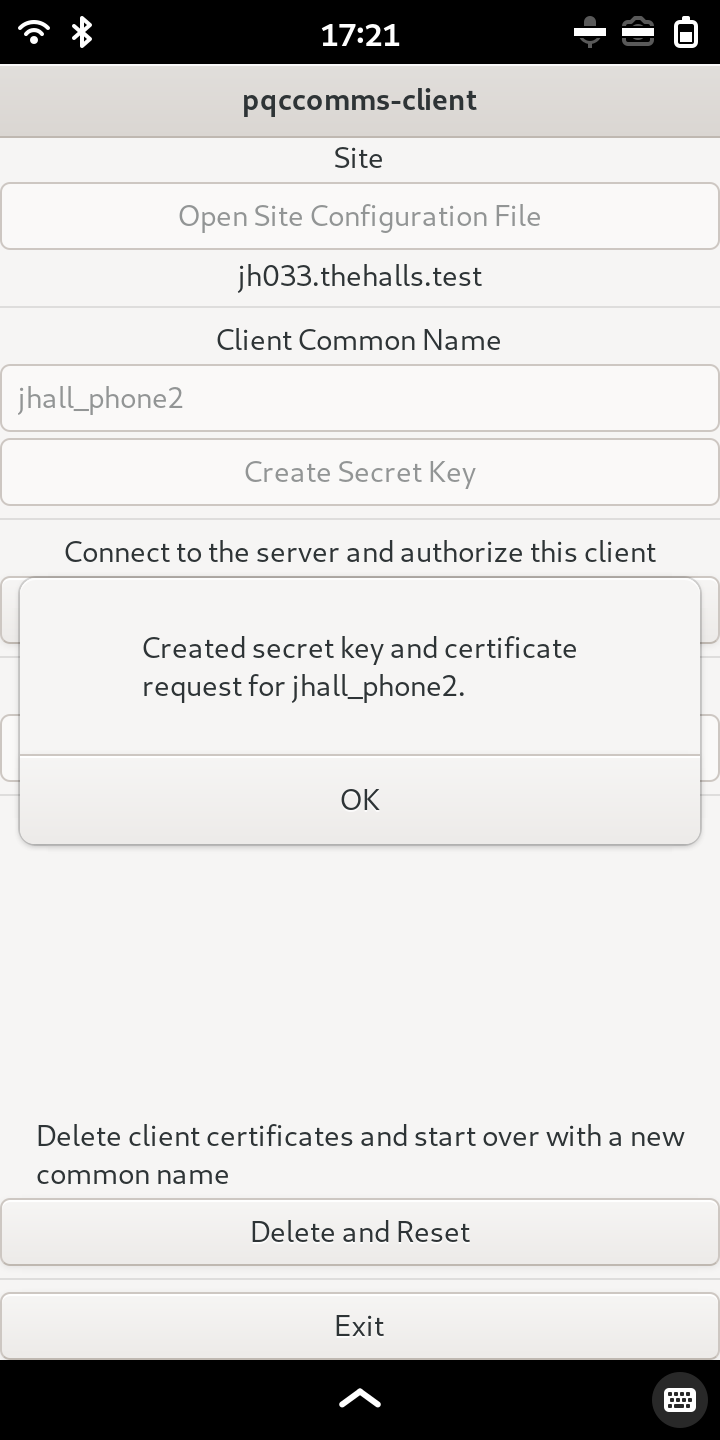
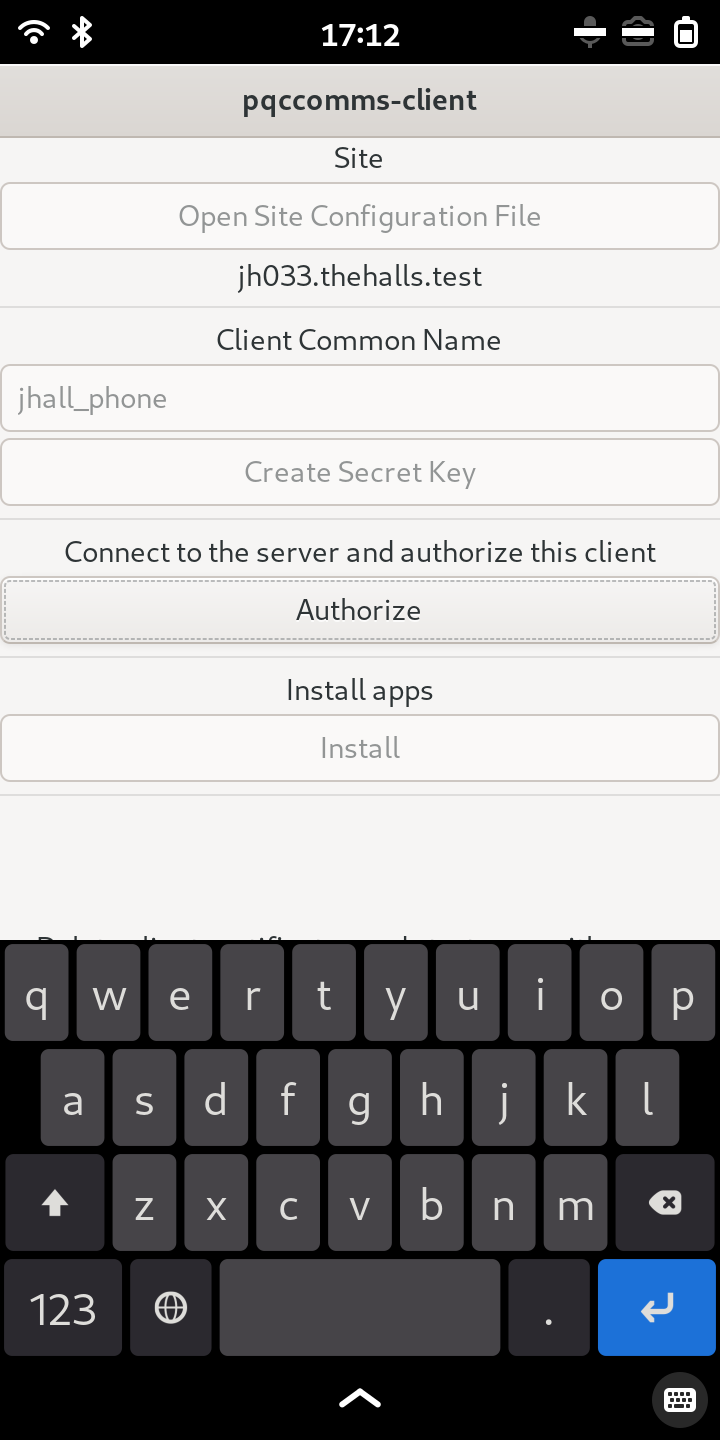
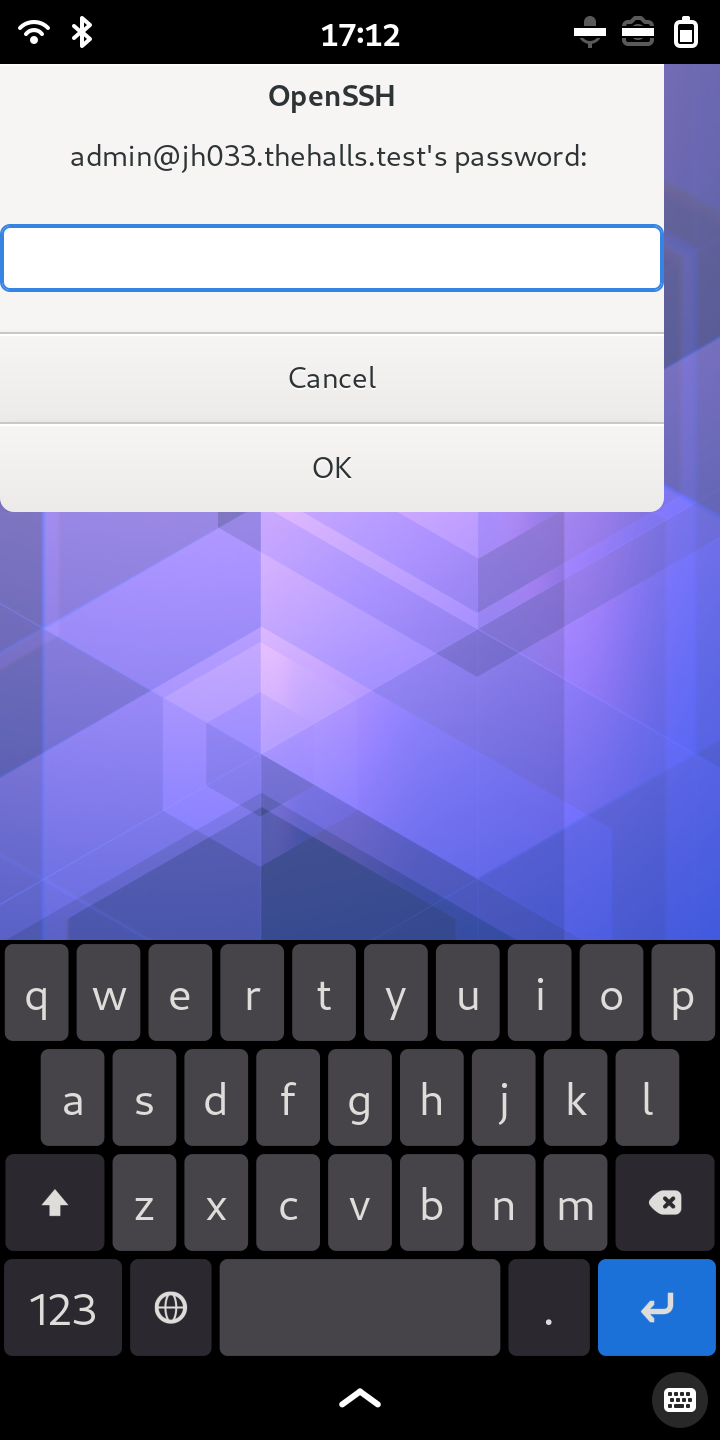
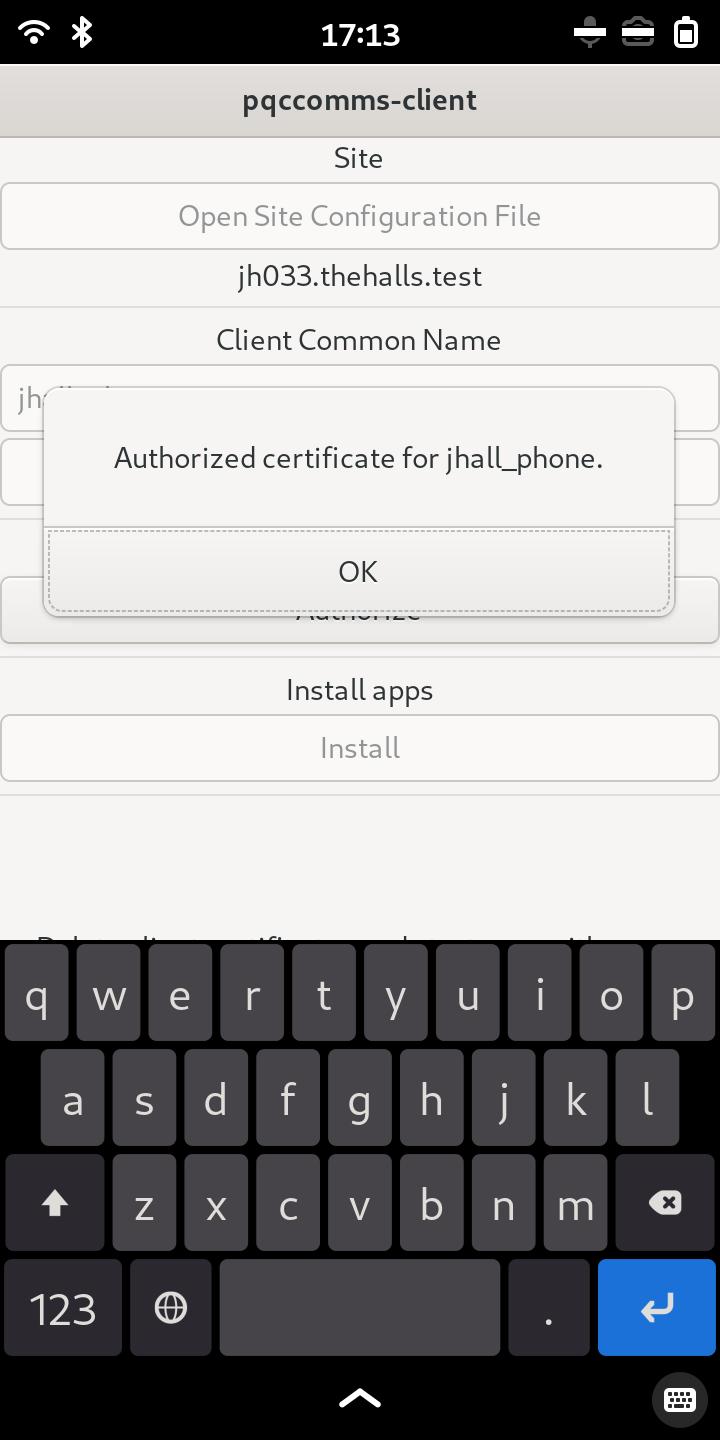
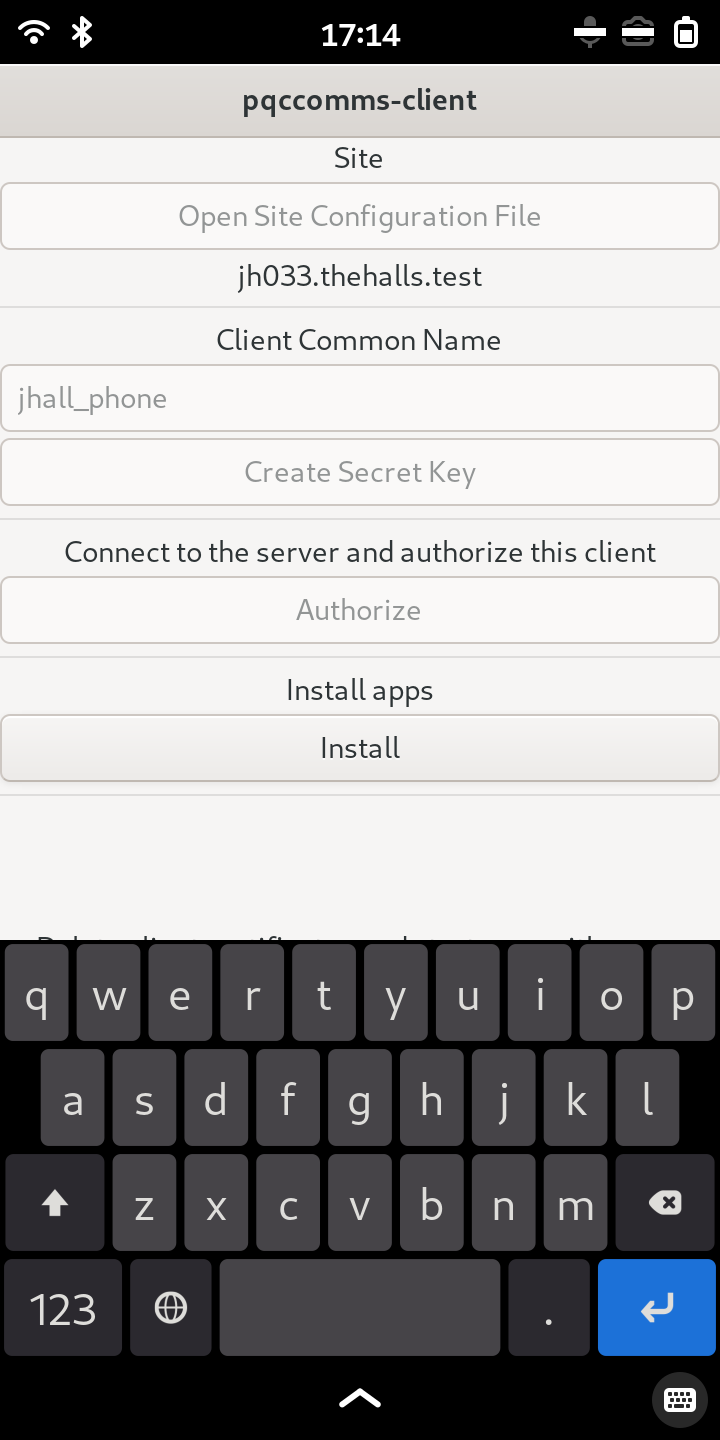
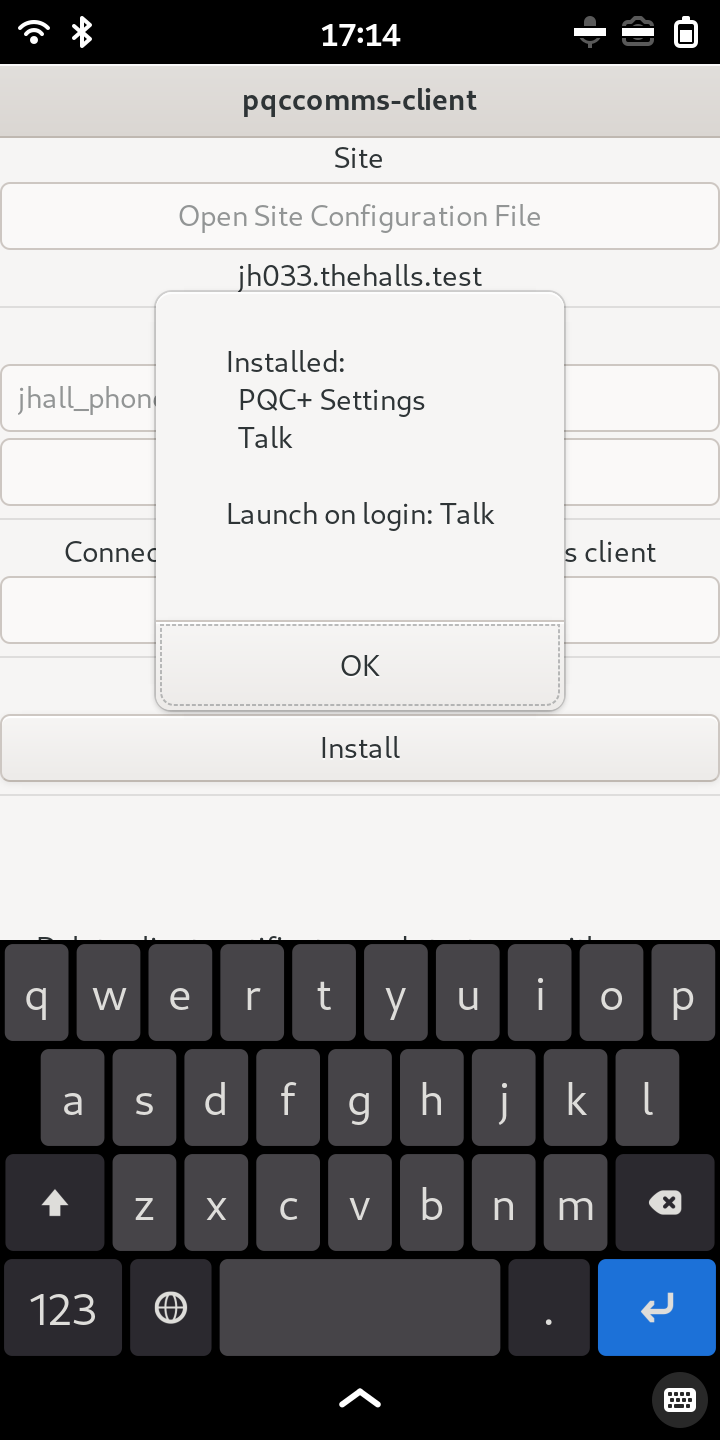
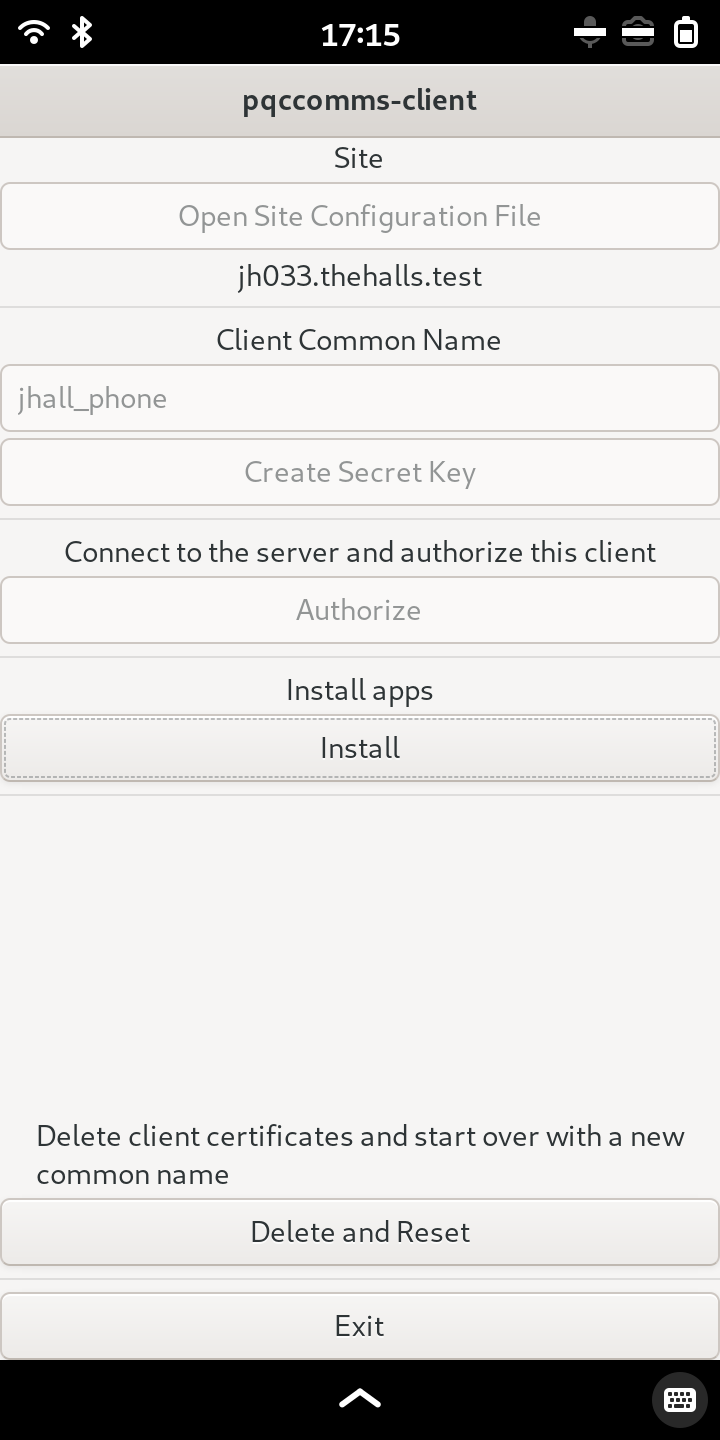
This process installs the CA certificate from the server, then generates a secret key and certificate for this device. The device is then authorized by the administrator signing its certificate. The secret key is generated on-device and never transmitted. It always remains on the device.
|
|
|
|
|
|
|
|
|
|
|
|
|
|
|
To change your password, open the PQC+ Settings app, then log in and change your password.
Use a communication device#
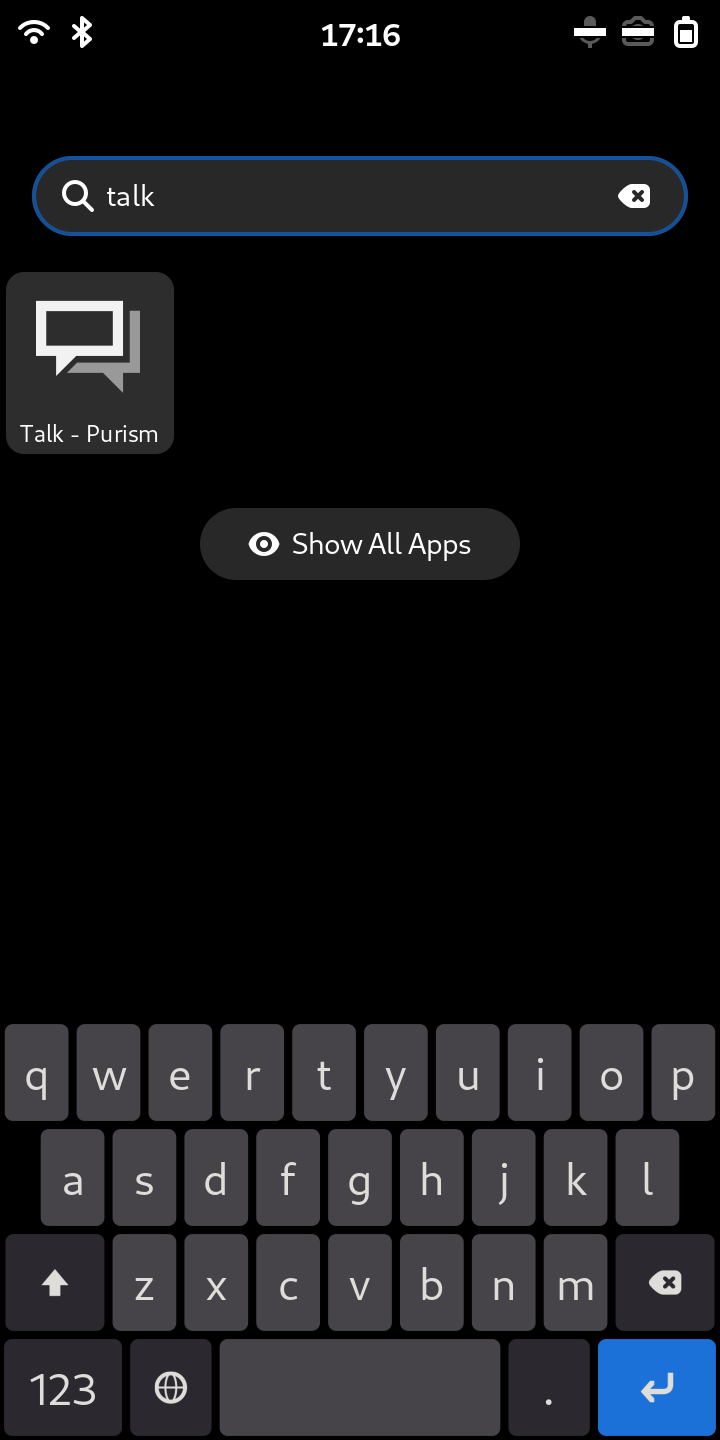
The administrator then gives the device and credentials to the user. To use the device, the user authenticates with the device certificate, then logs in with the credentials. Authenticating with the device certificate is automatic when using the installed web apps. The Talk application launches automatically when the phone starts up.
To verify the connection utilizes the server CA certificate, open the server’s admin interface from a web browser on the device. This requests certificate authentication.
Note
This will only work on the Librem 5 at 100% screen scale. The certificate prompt does not fit at any higher scale and cannot scroll.
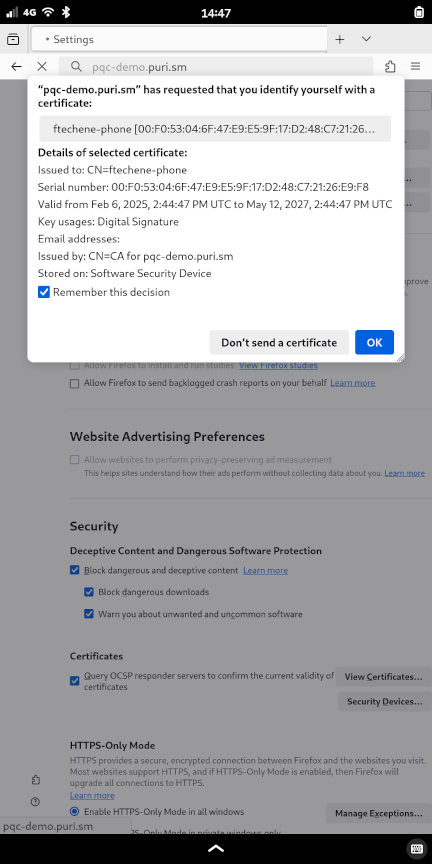
Check “Remember this decision” and tap “OK”, then log in with your credentials.