Display scaling#
Changing the display scale to a smaller ratio can help some apps fit the screen when the Compositor setting in the Mobile Settings app does not work for them.
Temporarily set the display scaling#
This setting will persist until the device has rebooted.
Open the Settings app.
Locate and open the Displays panel.
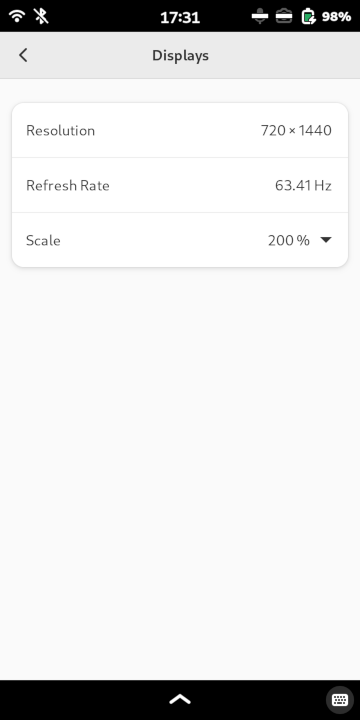
Tap on the scale value dropdown and select an option.
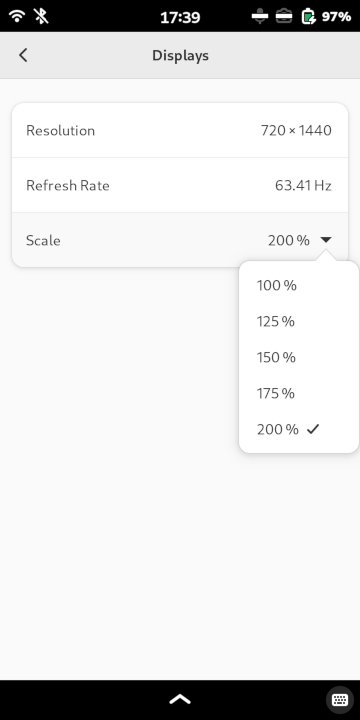
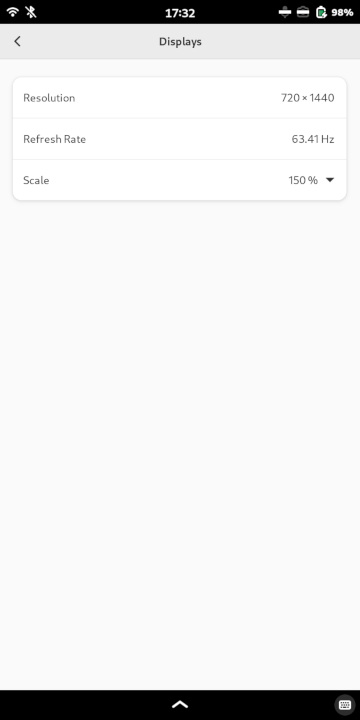
Tap the Apply button in the upper-right corner.
Permanently set the display scaling#
Open a terminal.
Make a
phoshdirectory in/etcif it does not already exist.sudo mkdir -p /etc/phosh
Open the display settings in a text editor.
gnome-text-editor admin:///etc/phosh/phoc.iniAdd the following contents to set the display scaling to 175%. Other common values are
1(100%),1.25(125%), and1.5(150%).[output:DSI-1] scale = 1.75
Save the file using the
 (menu) icon in the top-right corner of the screen to open a menu and select Save.
Restart Phosh.
sudo systemctl restart phosh