Waydroid#
Overview#
While Android applications are not natively installed within PureOS [1], Waydroid makes it possible to install Android applications within PureOS for desktop and mobile.
See also
Downloadthe video
Install and configure#
Download and install Waydroid from the PureOS Store or from the terminal with
sudo apt install waydroid.Reboot the device
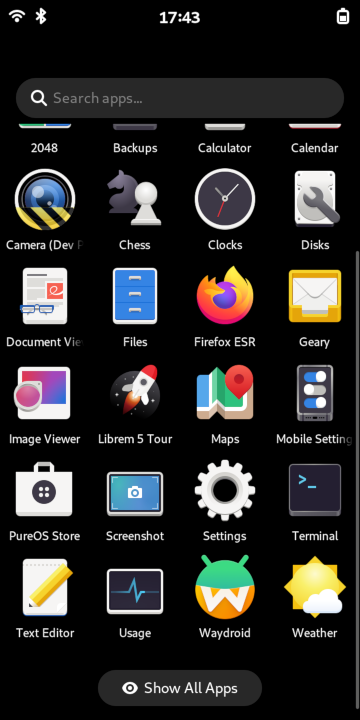
Launch Waydroid by clicking/tapping on its icon in the application list.
A “Initialize Waydroid” window will launch which allows you to download an Android image.
Select an Android image to install.
VANILLA: no Google services installed
GAPPS: includes proprietary Google Apps services
Leave the selection at the default value to use the official Waydroid OTA service.
Note
microG can be installed later, which is a free- and open-source implementation of Google Play services
Click or tap “Download”.
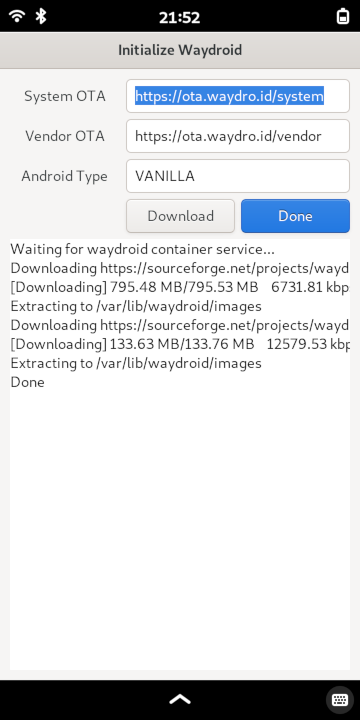
After the image downloads complete, click or tap the blue “Done” button. Wait a few moments; an Android splash screen should appear and the Android system should eventually load.
Tip
If an Internet connection is unavailable from within Waydroid despite an active Internet connection on the host computer:
Launch a terminal emulator and run the following commands [source]:
# Start the firewall
sudo systemctl start firewalld

# Allow traffic on the waydroid0 interface with few restrictions
sudo firewall-cmd --zone=trusted --add-interface=waydroid0 --permanent

# Enable NAT on PureOSDesktop so devices/containers within it share the host's IP address for outbound traffic
sudo firewall-cmd --zone=PureOSDesktop --add-masquerade --permanent

# Reload the firewall for the changes to take effect
sudo firewall-cmd --reload
If there is still a networking issue where the Internet cannot be reached, refer to the official Waydroid documentation.
Optional: Obtain Google Play certification
Tips#
Mobile PureOS
Here are a few tips to make your experience with Waydroid more enjoyable on the Librem 5:
Set a persistent Waydroid resolution. There is a known issue whereby having the on-screen keyboard active when a Waydroid session is launched will cause Waydroid’s environment to only take up the remainder of the screen area. The following steps will ensure that Waydroid looks consistent every time:
Determine your Waydroid resolution dimension settings based on Settings > Displays > Scale:
Scale
Width (px)
Height (px)
1.00
720
1368
1.25
576
1080
1.50
480
888
2.00
360
648
Run the following commands. Replace “<int>” with an integer representing a number of pixels:
waydroid prop set persist.waydroid.width <int>
waydroid prop set persist.waydroid.height <int>
Restart the Waydroid container if it is already running for the changes to take effect:
sudo waydroid container restart
Uninstall#
Caution
The following terminal commands remove all data stored within the Android container.
Launch a terminal emulator and run the following:
sudo systemctl stop waydroid-container
sudo rm -rf /usr/share/waydroid-extra /var/lib/waydroid ~/.local/share/waydroid ~/.local/share/applications/waydroid.*.desktop ~/.local/share/applications/Waydroid.desktop
sudo apt remove libgbinder libgbinder1 libglibutil libglibutil1 libgbinder-dev libglibutil-dev python3-gbinder waydroid